
Building a plan
Content and people do not meet directly in Knowspread. A study plan stands between them: it holds content on one side and learners on the other. The first thing worth knowing is that you almost certainly have plans already.
1. Look before you build
Section titled “1. Look before you build”Studijní plány in the rail is the list. A space nobody has been assigned anything in is still full of them.
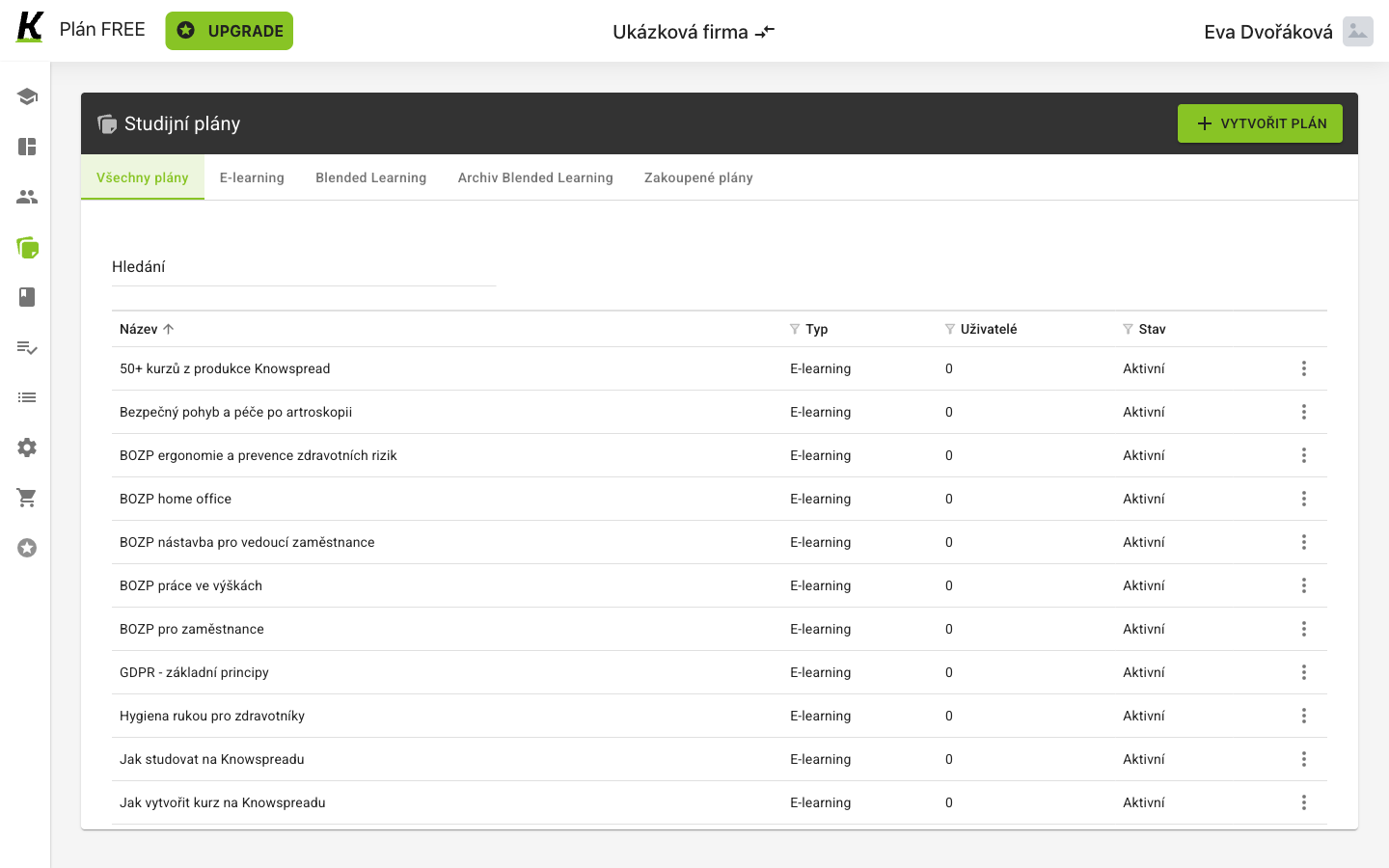
- VYTVOŘIT PLÁN makes a new one (1) — and is often not what you need.
- Five filters divide the list (2): all, E-learning, Blended Learning, its archive, and Zakoupené plány — plans that came with a purchase rather than being built here.
- Uživatelé reads 0 on every row (3). The plans exist; nobody is in them. Stav beside it reads Aktivní, which describes the plan, not whether anyone is learning from it.
A new space arrives with a plan for each course in Knowspread’s own catalogue, plus a bundle called 50+ kurzů z produkce Knowspread. Assigning one of those is usually faster than building your own.
This screen is built in React while most of the app is AngularJS. The lighter tables, the tab strip and the funnel icons on column headings are a different generation of the product, not a different kind of screen.
2. Say what kind of plan and what it is called
Section titled “2. Say what kind of plan and what it is called”VYTVOŘIT PLÁN opens a dialog that asks almost nothing — and grows once you answer the first question.
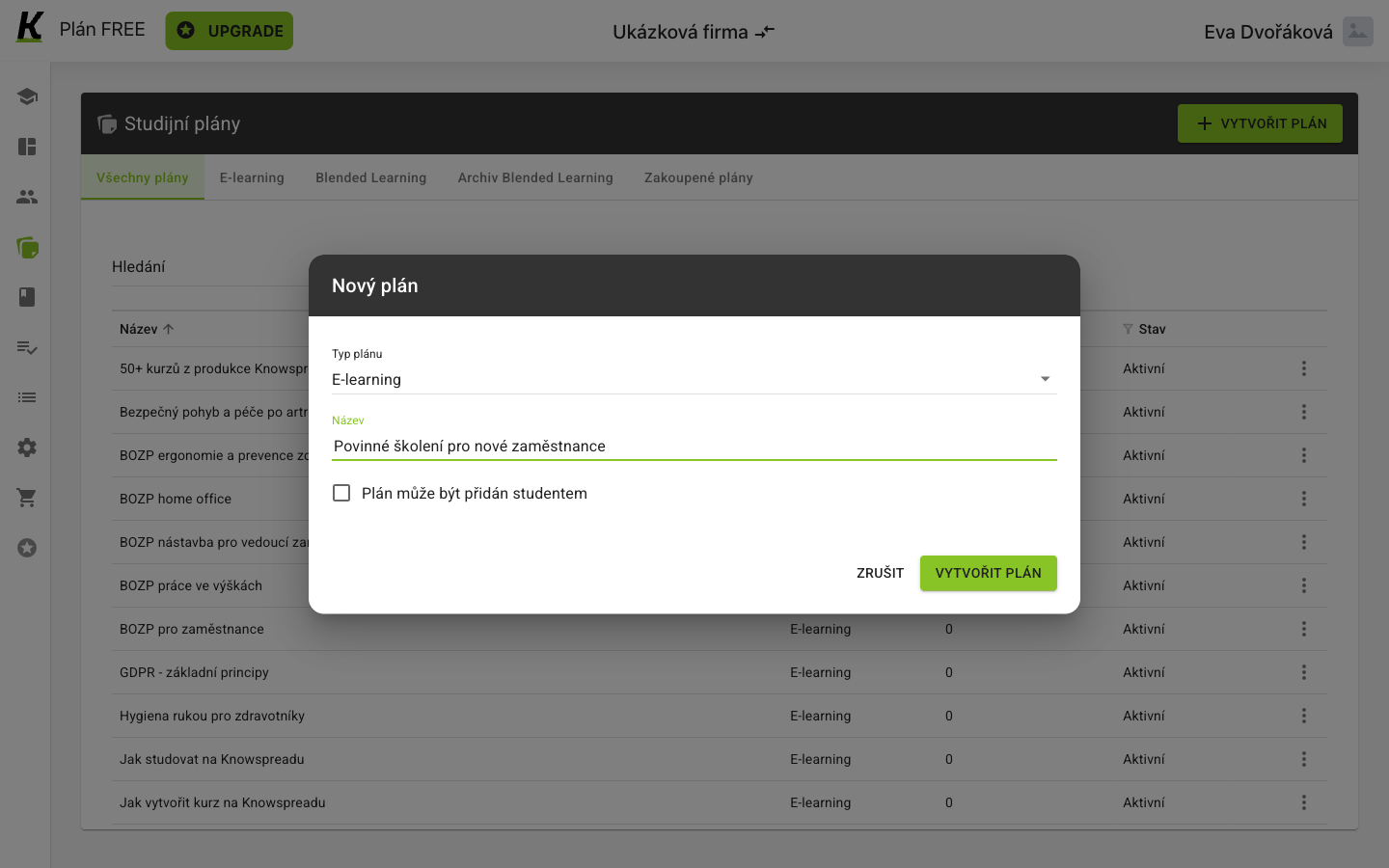
- Typ plánu offers E-learning or Blended Learning (1) — study on screen, or study with something scheduled in a room.
- Název appears only after the type is chosen (2). The dialog opens with one field and grows to three.
- Plán může být přidán studentem is off by default (3). Turn it on and people can put themselves in the plan instead of waiting to be assigned.
- VYTVOŘIT PLÁN creates it (4).
Once the plan exists, its Obsah tab holds the content assignments. Recurrence is configured for each content assignment there.
3. Land on people, not content
Section titled “3. Land on people, not content”Creating the plan opens it, and it opens on the side that has nobody in it.
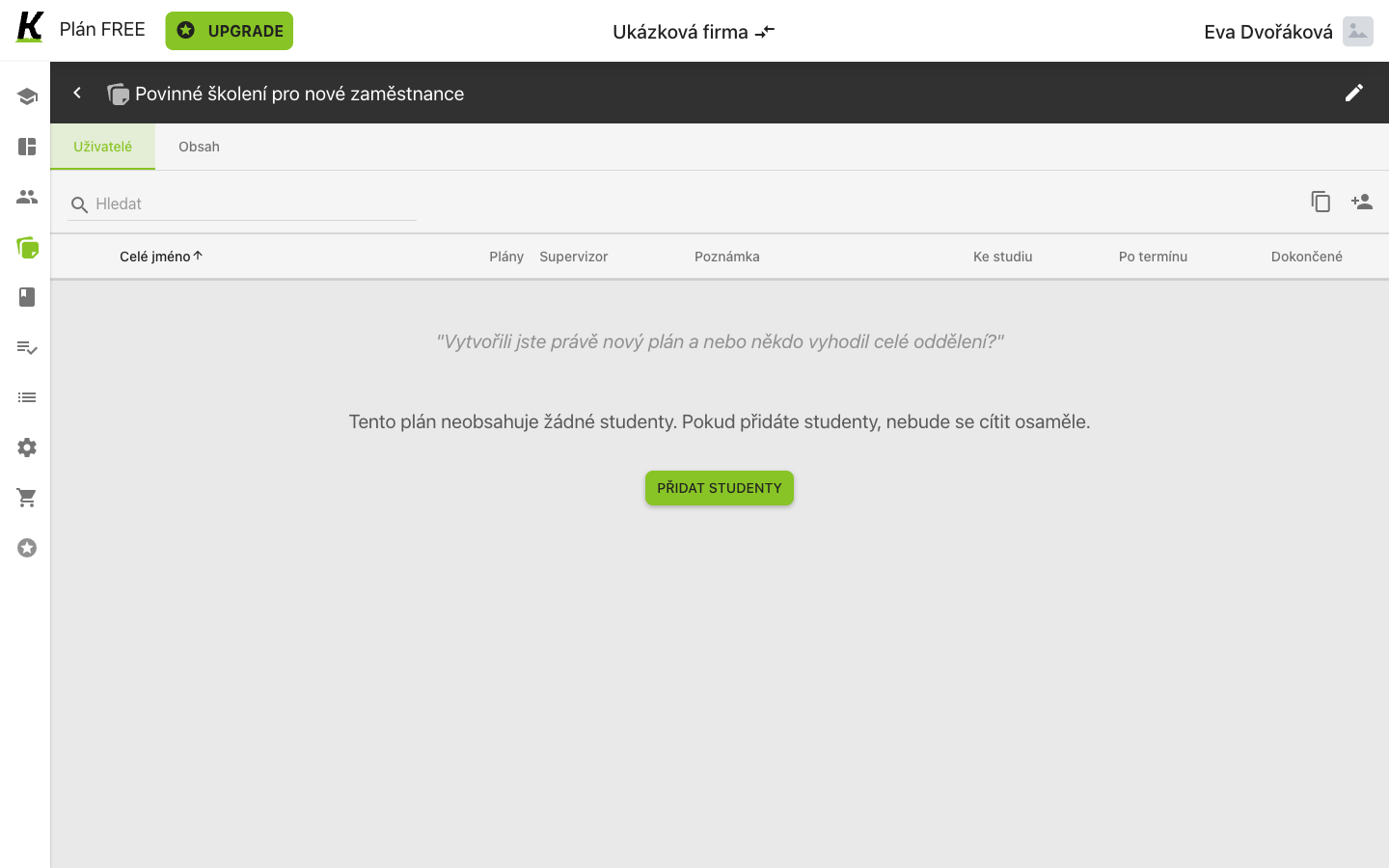
- Two tabs, Uživatelé and Obsah (1) — the whole of a plan.
- The empty state explains itself in the product’s joking voice (2).
- PŘIDAT STUDENTY is offered first (3), before the plan has anything to teach.
The plan opens on Uživatelé. Adding people to a plan with no content assigns them nothing, so the useful order is the other tab first.
4. Then put content in it
Section titled “4. Then put content in it”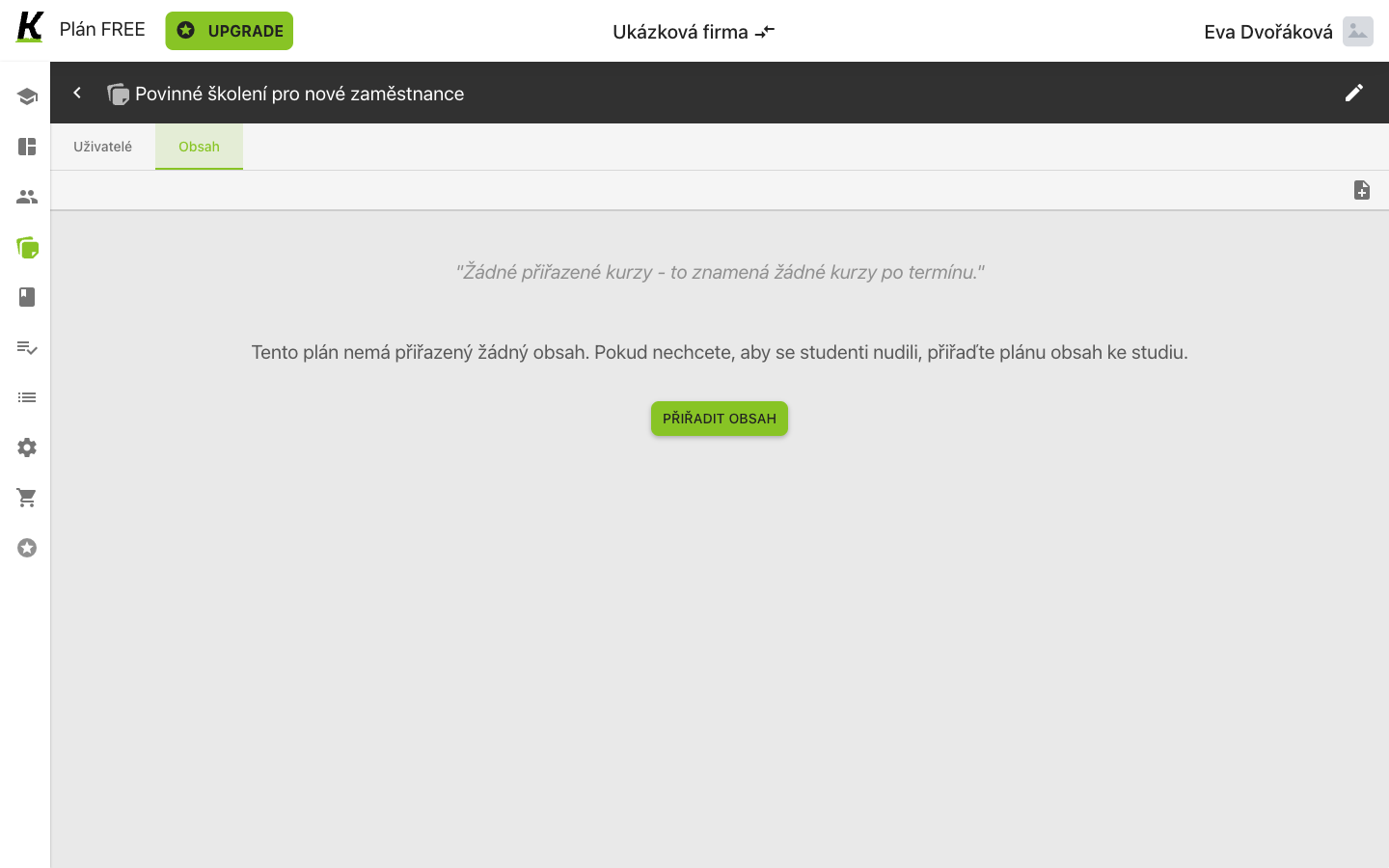
- Obsah is the second tab (1).
- Its empty state is written in the same voice (2).
- PŘIŘADIT OBSAH is where the courses go (3) — bought ones and your own alike.
The pencil in the top right edits the plan itself — its name, its type and the self-assignment switch — so none of those choices is permanent.
5. Choose the content and how it behaves
Section titled “5. Choose the content and how it behaves”PŘIŘADIT OBSAH opens the dialog for choosing content and configuring its assignment to this plan.
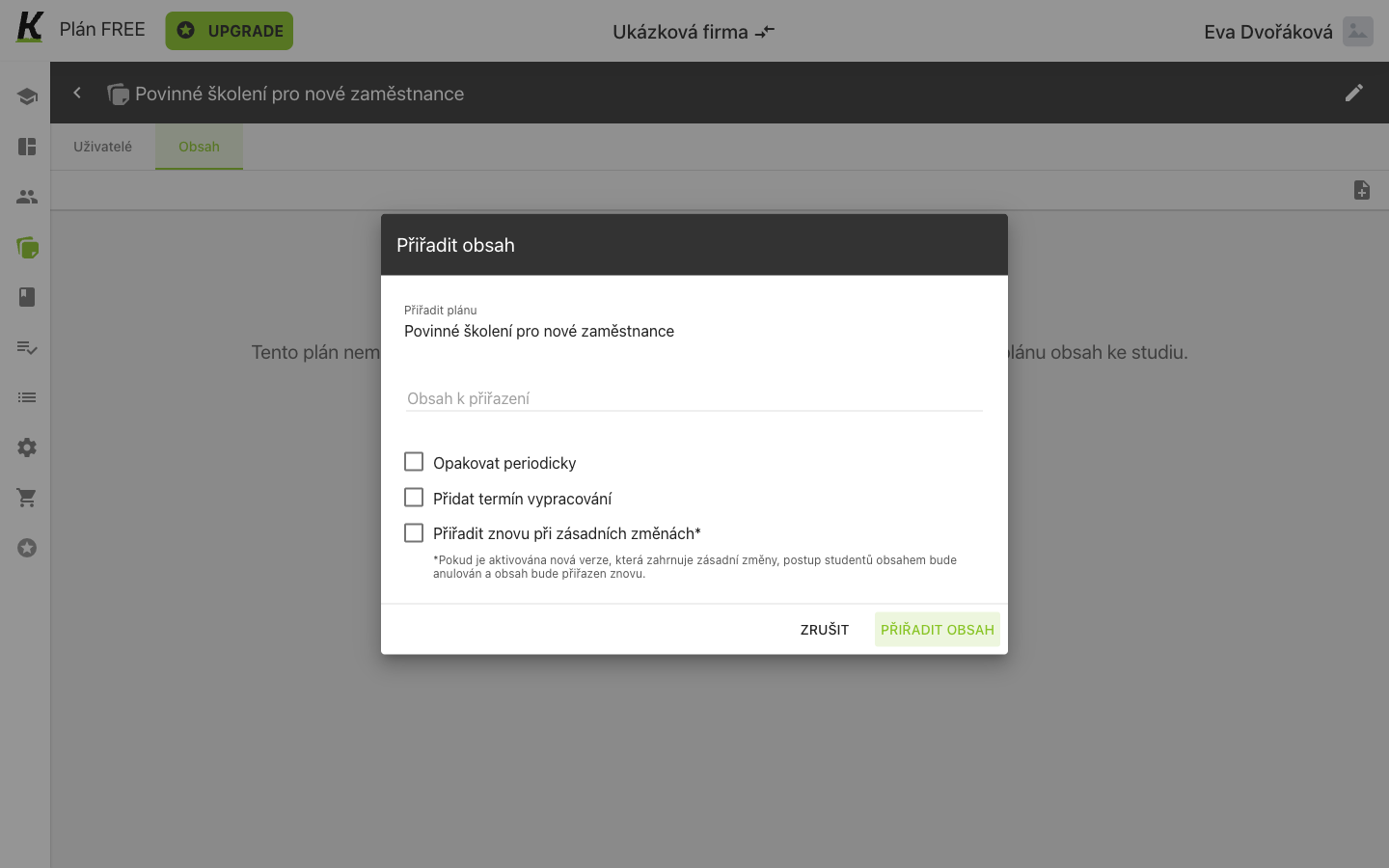
- Obsah k přiřazení searches everything the space owns (1) — bought courses and your own alike, each shown with its description, which is what that description is for.
- Opakovat periodicky is the recurrence switch (2). The other two options are Přidat termín vypracování for a deadline and Přiřadit znovu při zásadních změnách for reassignment following major changes.
- The footnote spells that last one out (3): if a new version with substantial changes is activated, the learners’ progress is voided and the content is assigned again.
In this example, all three switches are off. No deadline or recurrence is configured.
6. Read the row it produces
Section titled “6. Read the row it produces”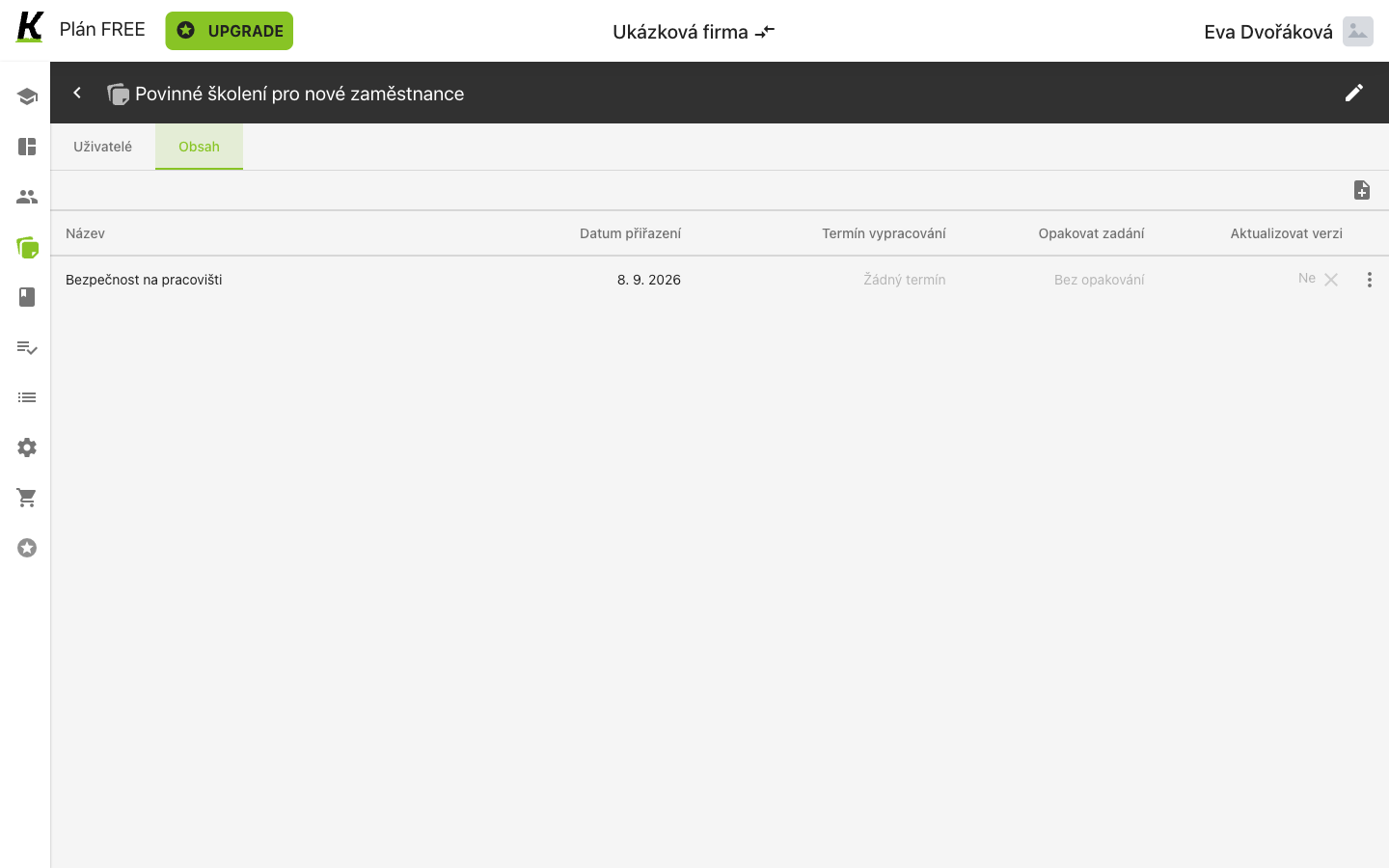
The three switches become three columns — but two of the headings do not use the words the dialog used:
- Termín vypracování is the deadline (1), the same wording as the dialog’s. Below it: Žádný termín.
- Opakovat zadání is the recurrence (2). The dialog called it Opakovat periodicky. Below it: Bez opakování. To change this existing assignment, follow setting a recurrence interval.
- Aktualizovat verzi is reassignment on substantial change (3) — the dialog called it Přiřadit znovu při zásadních změnách, which says considerably more. Below it: a bare Ne.
The row also carries Datum přiřazení, the date the content was assigned, which is not a setting from the dialog but a record of when it happened.
Where this leaves you
Section titled “Where this leaves you”A plan of your own with one course in it, no deadline and no recurrence — and still nobody on the other tab. The plan list shows it with 0 users like the rest.
If the training should repeat, set and verify a recurrence interval for the content already assigned to the plan. Assigning the plan to people is a separate step. For the plan screen’s reference, see study plans.