
Building a quiz
A published course cannot be edited — publishing a version locks it for good. So adding a test to one means founding its next version, and that is where this journey starts.
You need a course of your own with an active version, and permission to manage content.
1. Found the next version
Section titled “1. Found the next version”Open Obsah, select the course, and go to its Verze tab.
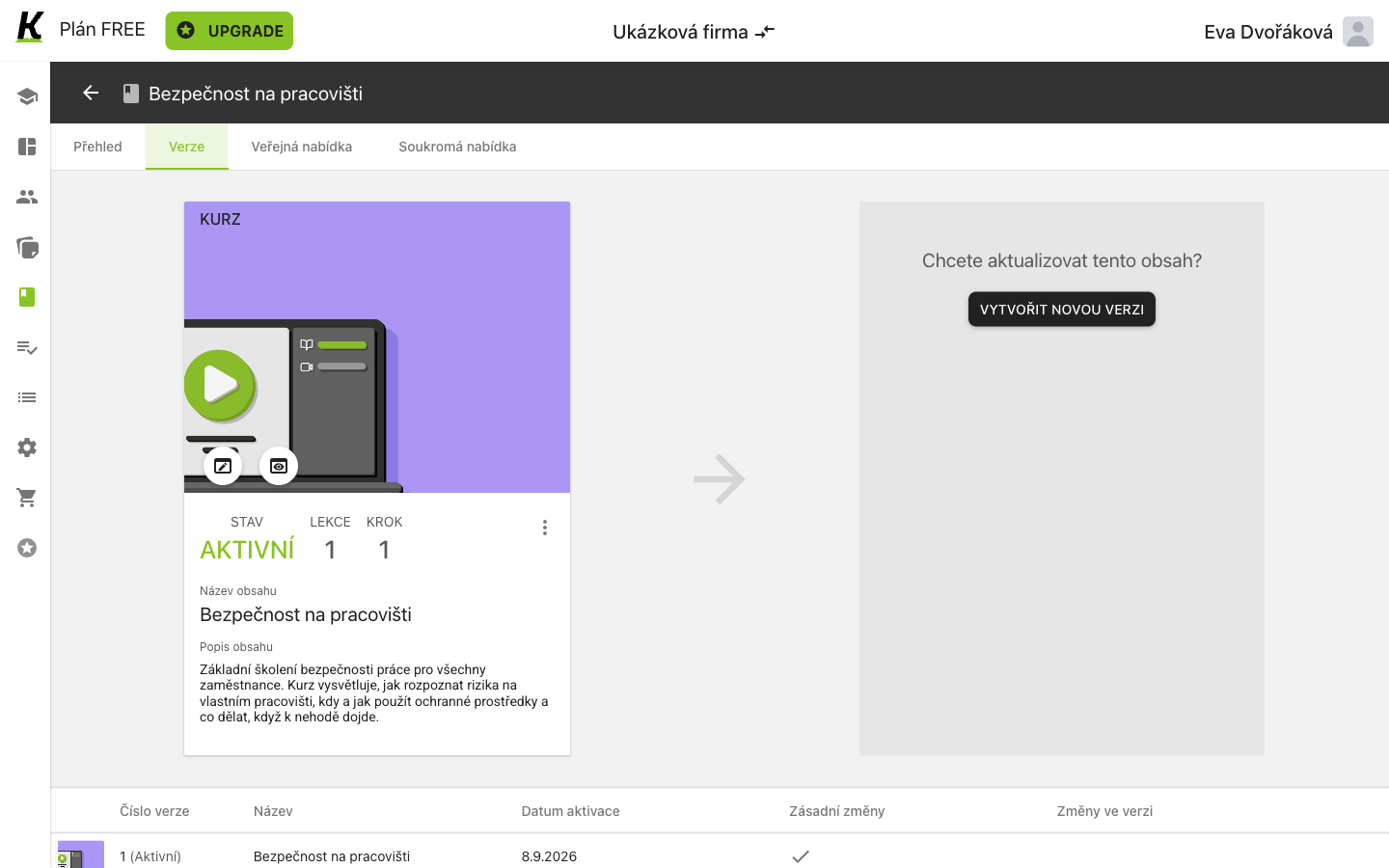
- Chcete aktualizovat tento obsah? stands in the empty panel (1), which is where the next version will appear.
- VYTVOŘIT NOVOU VERZI (2) founds it. There is no confirmation dialog: the draft simply appears beside the active one.
- The active version stays AKTIVNÍ (3) and keeps serving learners while you work.
The new version is a copy of the active one — same lessons, same steps, same description.
2. Say what changed, before you can activate anything
Section titled “2. Say what changed, before you can activate anything”Open the draft’s editor. It starts one item short of finished, and the first version never did.
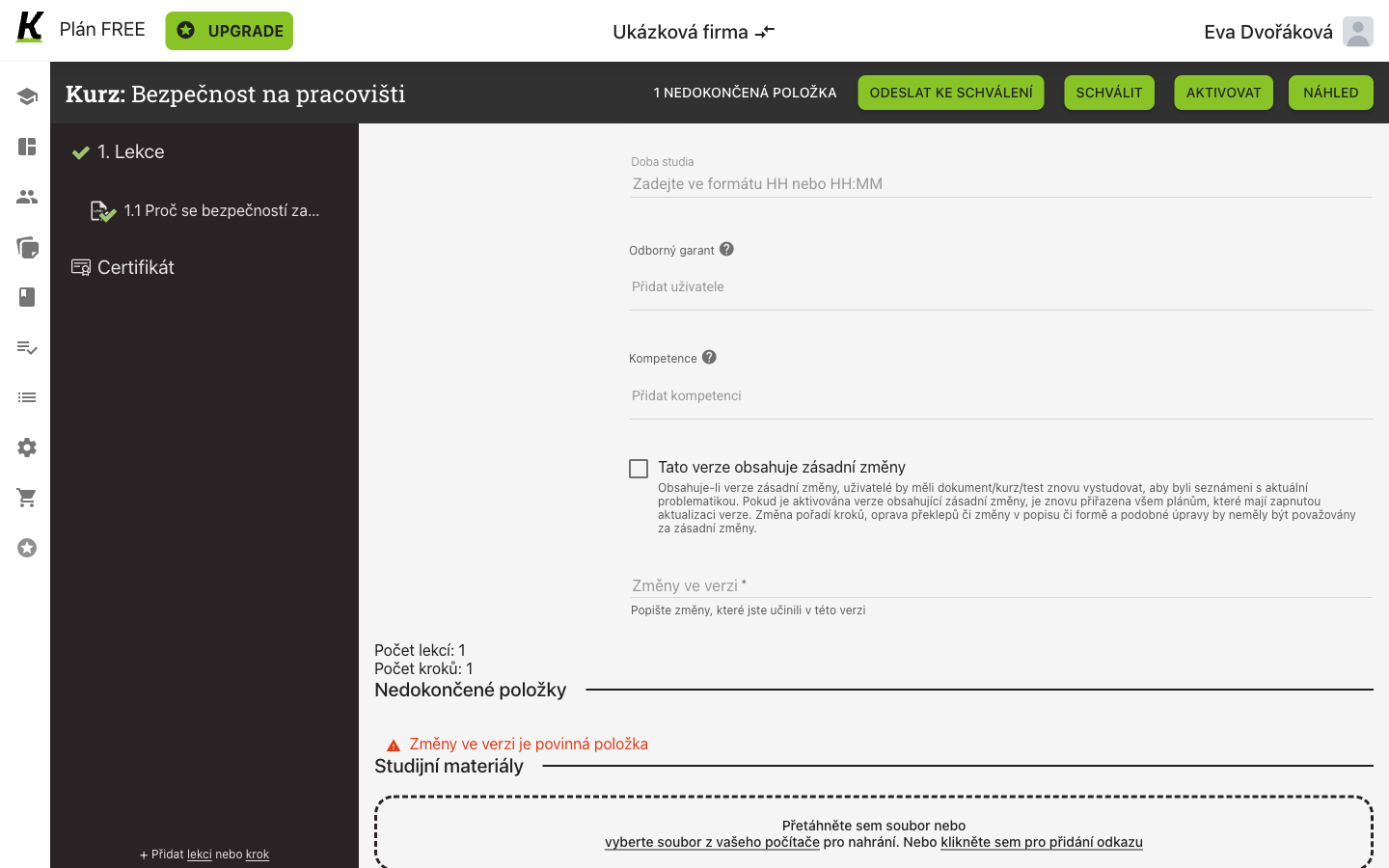
- Tato verze obsahuje zásadní změny (1) carries the product’s own rule beneath it: a version marked this way, once activated, je znovu přiřazena všem plánům, které mají zapnutou aktualizaci verze. It also says what should not count — reordering steps, fixing typos, rewording a description.
- Změny ve verzi (2) is required. Write what you changed; the version list keeps it.
- Until you do, the unfinished list says so (3) and the activation buttons will not finish the job.
The counter in the bar does not clear as you type. It still read 1 NEDOKONČENÁ POLOŽKA after the field was filled and left, and read Vše dokončeno after the page was reloaded.
3. Add a step and make it a test
Section titled “3. Add a step and make it a test”Add a step to the lesson, name it, and choose Test from the nine kinds of step content. Its settings are the whole of what a test is.
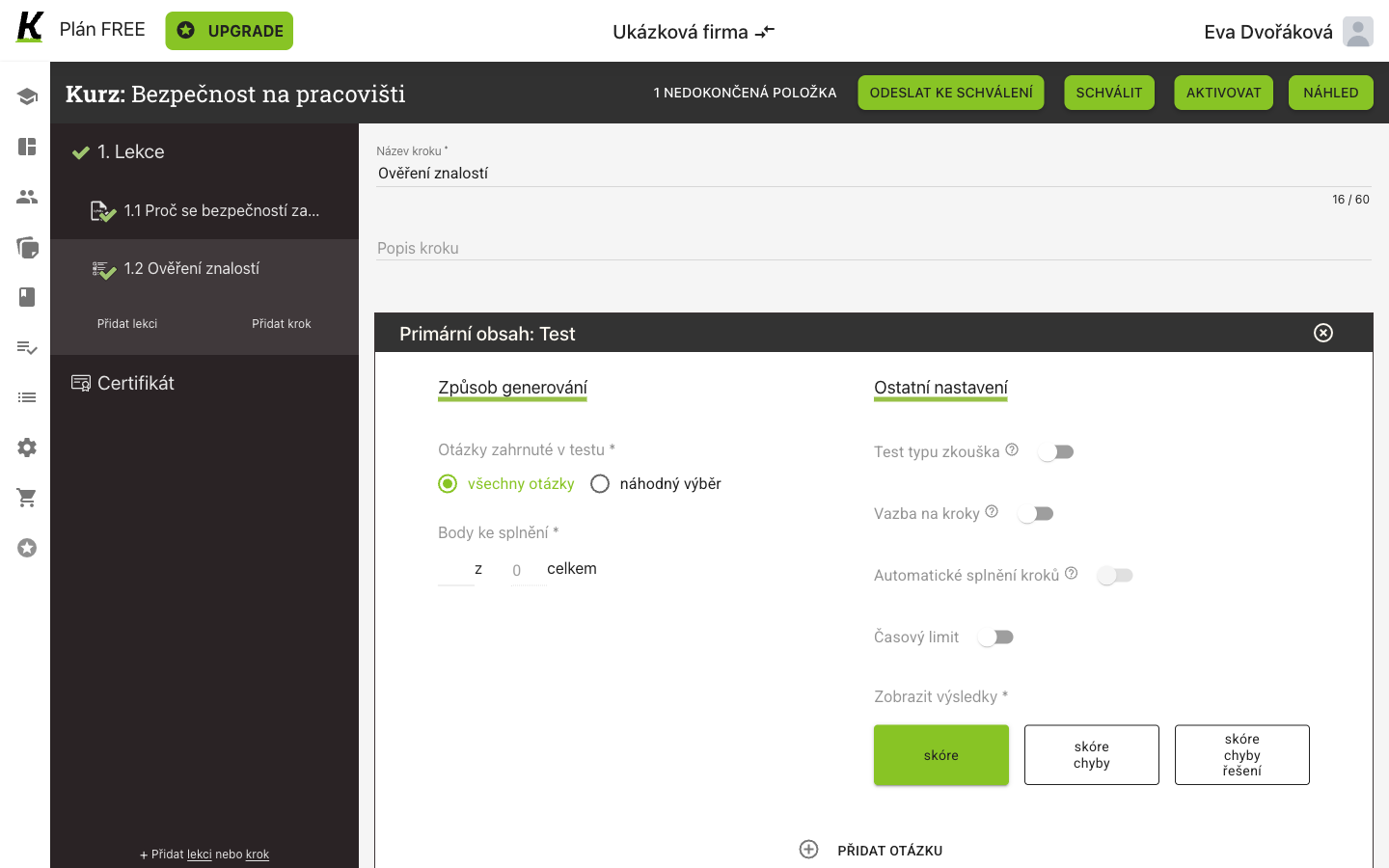
- Primární obsah: Test (1). The same list also offers Dotazník — a questionnaire — which this journey does not cover.
- Otázky zahrnuté v testu (2): všechny otázky, or náhodný výběr.
- Body ke splnění (3) is what passing means: a number of points out of the total. The total is computed from the questions, not typed — one question worth one point makes it 1 z 1 celkem. Not a percentage, and not all-or-nothing.
- Zobrazit výsledky (4) decides how much a learner sees afterwards: skóre, skóre + chyby, or skóre + chyby + řešení. skóre is preselected.
Beside those sit Test typu zkouška, Vazba na kroky, Automatické splnění kroků and Časový limit, all off. The third is greyed out until the second is on.
4. Choose where the question comes from
Section titled “4. Choose where the question comes from”PŘIDAT OTÁZKU offers five answers to that.
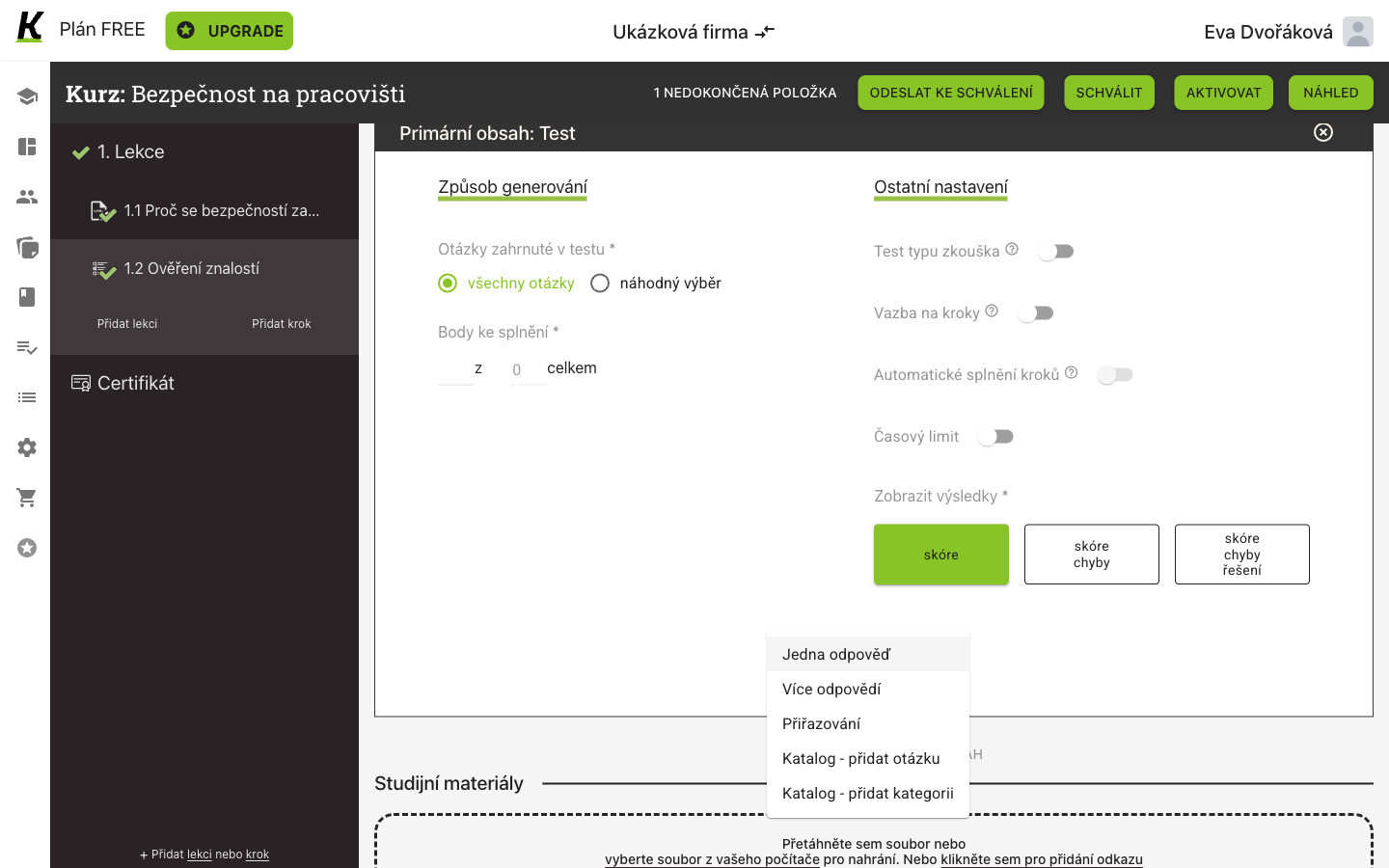
- Three kinds are written into this test (1): Jedna odpověď — one right answer among several; Více odpovědí — several right answers; and Přiřazování — matching.
- Two fetch from the shared list in the navigation (2): Katalog – přidat otázku takes one question from Katalog otázek, and Katalog – přidat kategorii takes a whole category.
So questions live in two places: written into this test, or kept in the catalogue and reused. This journey writes one.
5. Write the question
Section titled “5. Write the question”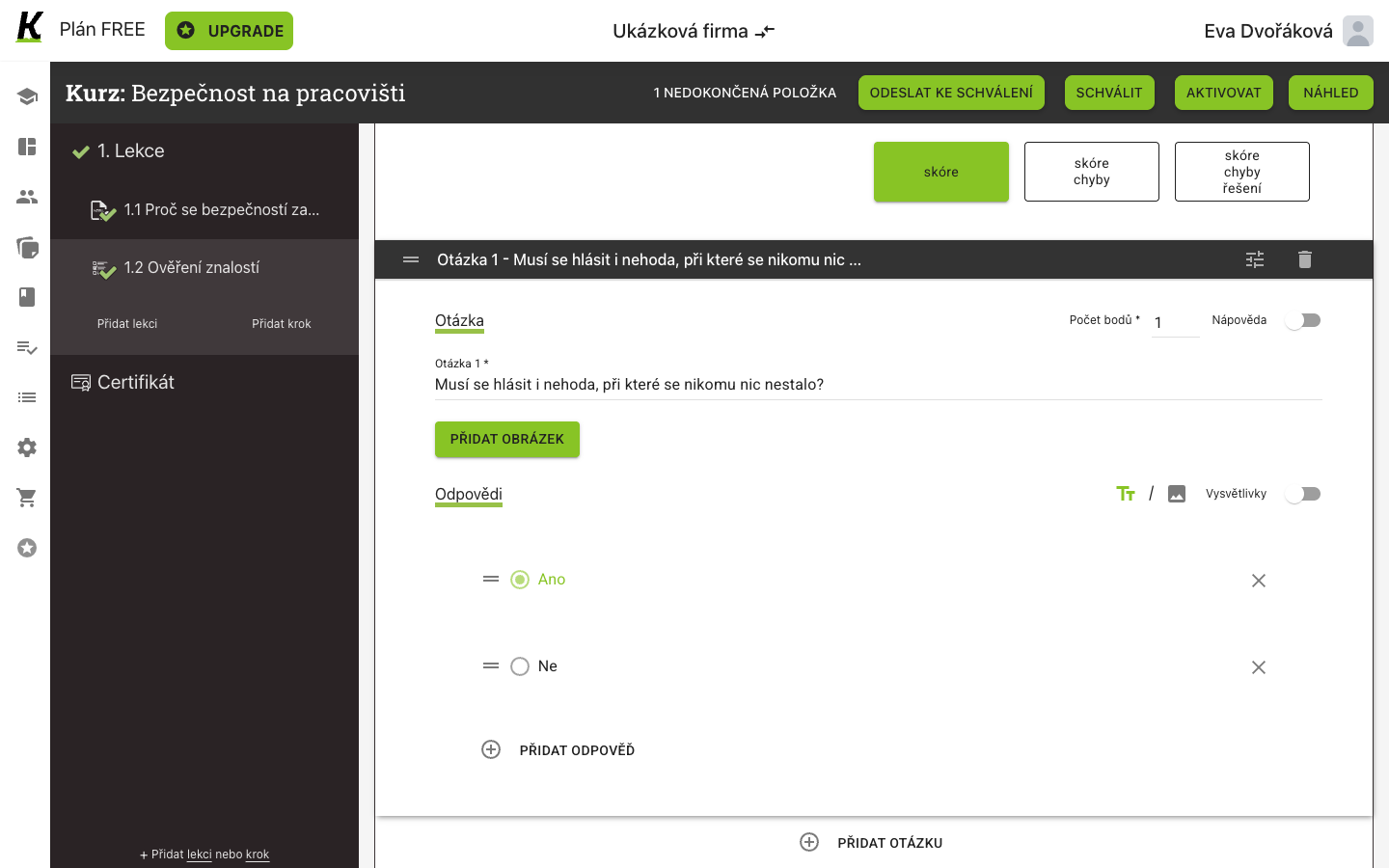
- The question’s text goes in the field labelled Otázka 1 (1). See the warning below — this is the one place in this journey that is easy to get wrong.
- Počet bodů (2) is required and feeds the pass mark in step 3.
- Nápověda (3) is an optional hint, off here.
- The radio beside an answer marks it correct (4) — green when chosen.
- Other answers sit below (5), each removable. PŘIDAT ODPOVĚĎ adds one; a shortcut button adds Ano and Ne as a pair.
The shortcut’s label reads PŘIDAT ODPOVĚĎI “ANO” A “NE” — a typo for odpovědi, in the product.
After a reload the question collapses to a summary row that shows its text. Nothing is lost; it only looks that way until you open it again.
Get this one right: the question needs its own text
Section titled “Get this one right: the question needs its own text”The step has a Popis kroku and the question has its own text field, and they
are easy to confuse — this run typed the question into the step’s description
and left the question itself empty. The version still activated, and the learner
got a test whose question showed as the literal word null. See
passing a test, where that screenshot is published
as it happened.
Where this leaves you
Section titled “Where this leaves you”A course whose next version carries a test, with a pass mark computed from its questions. Activating it is the same AKTIVOVAT as before, and the confirmation dialog is word for word the one the first version got — it says nothing about the version being marked as a major change.
Next: passing a test, which is this test taken — failed once on purpose, then passed. For the version screens themselves, see publishing a version.