
Setting recurrence
Set a recurrence interval for a course already assigned to a study plan. Change No repeat to 365 days and confirm that the value stays saved after reloading the page.
You need a plan with content already assigned to it and permission to manage that plan’s settings. If the plan has no content yet, start with building a plan.
Numbers in the instructions refer to markers in that step’s screenshot. Below the menu and form details, you can also open the whole application window.
1. Open the existing assignment
Section titled “1. Open the existing assignment”Open Study plans, select your plan, and choose its Content tab. Find the course whose recurrence you want to change. Open the three-dot menu on that course’s row and select Change assignment (1).
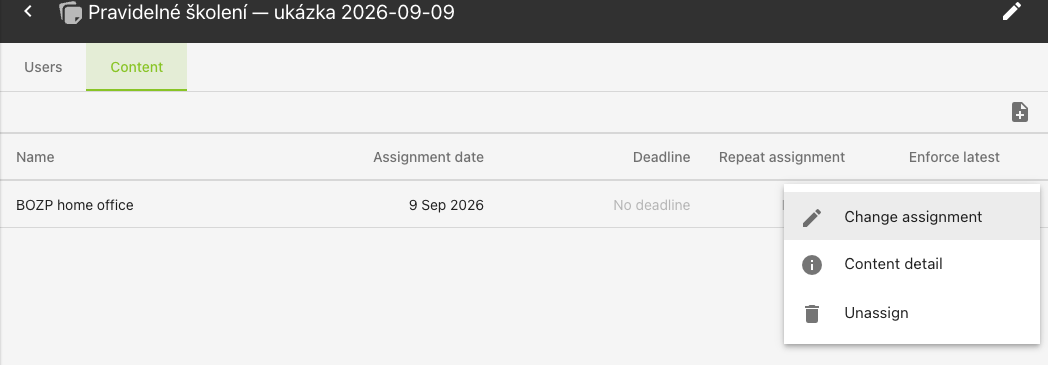
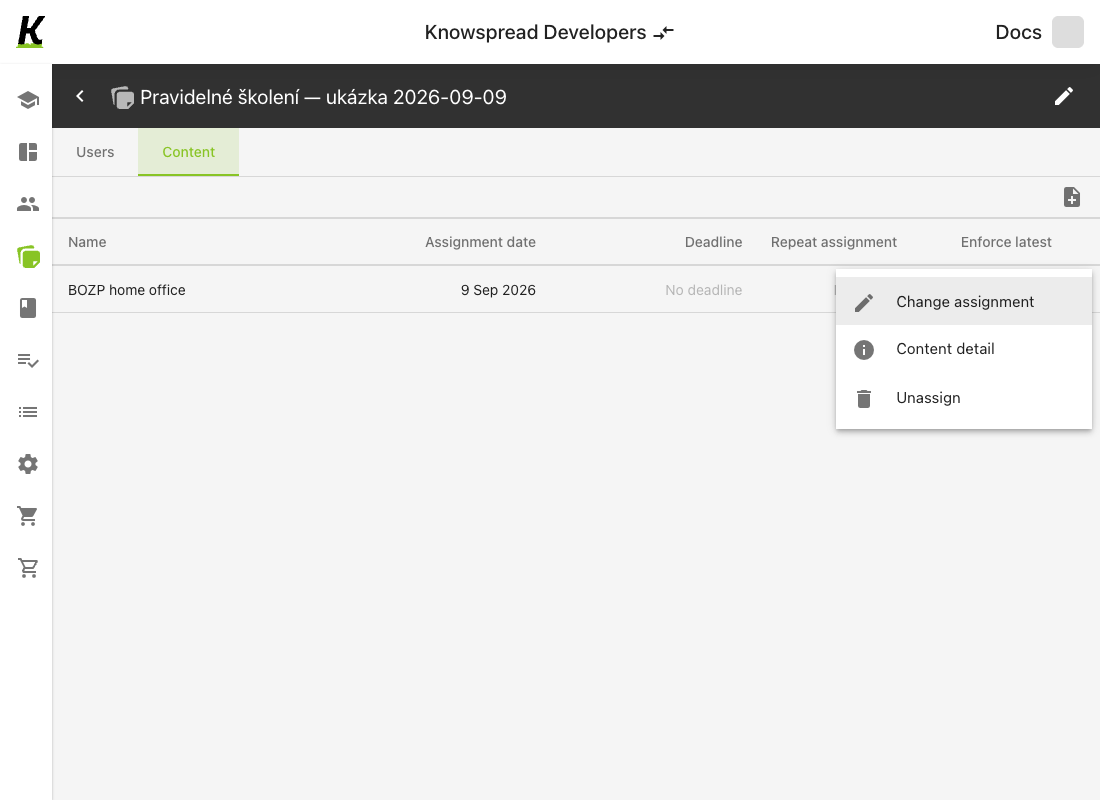
The setting belongs to this course’s assignment in the selected plan. Check that you have opened the intended plan and course; you can edit this row without removing and adding the course again.
2. Enter an interval and save
Section titled “2. Enter an interval and save”Select Repeat periodically (1). The Repeat period in days field (2) becomes required: enter a number of days directly into the field. It is a numeric entry, not a list of preset intervals.
Example: Our demonstration plan, Pravidelné školení — ukázka 2026-09-09, contains BOZP home office. For this example, the organization has chosen a 365-day interval for reviewing the training, so we enter 365. Choose the interval your organization needs. A duration of 365 days does not select a recurring calendar anniversary.
Click Update (3) to save the changed interval.
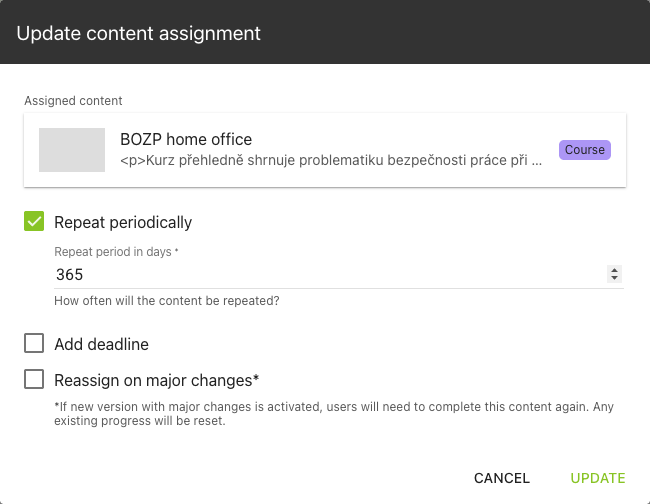
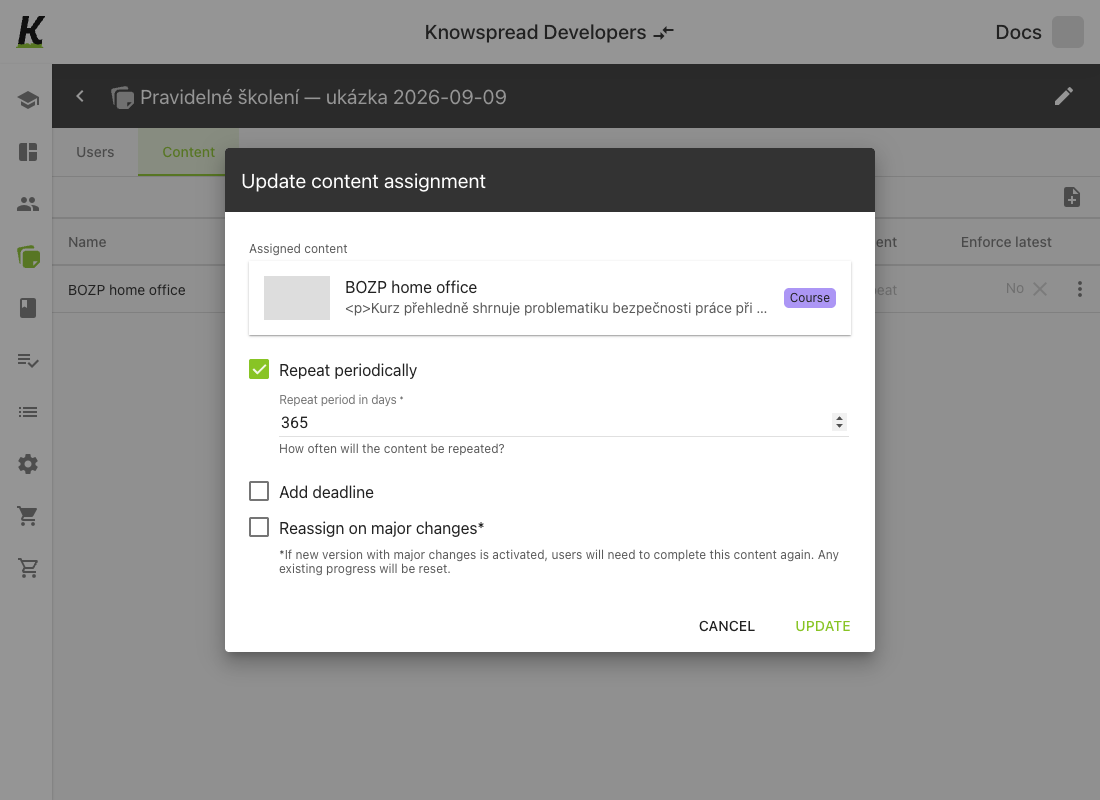
The dialog also offers Add deadline, for a completion deadline, and Reassign on major changes, for reassignment following a major content update. Both remain off in this example.
According to the interface, enabling reassignment on major changes resets learners’ progress and assigns the content again when a version with major changes is activated. This walkthrough does not test that effect. See publishing a version for the activation steps.
3. Check the saved value
Section titled “3. Check the saved value”Back on the Content tab, find the same course. Its Repeat assignment column should now show 365 days (1) in place of No repeat.
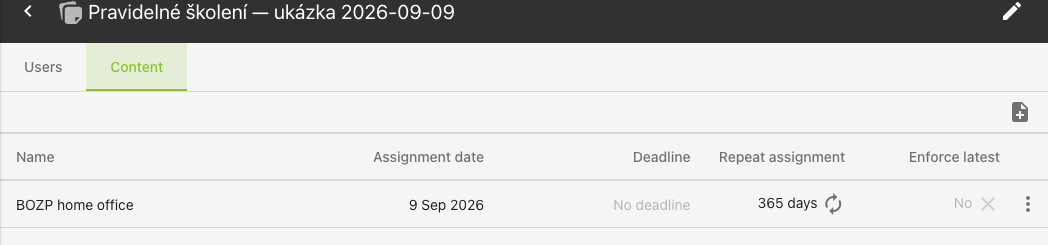
Reload the page, return to the Content tab, and check the row again. Then reopen its three-dot menu and choose Change assignment. Repeat periodically should still be selected, and Repeat period in days should contain 365. This confirms that the setting was saved. Close the dialog with Cancel after checking it.
Questions about this step
Section titled “Questions about this step”Why is there no Update button? When you reopen the saved assignment without changing a value, the button is not shown. It appears after a value changes. You do not need to change anything just to inspect the saved interval.
What if there is no course row? Add content to the plan first using building a plan, then return to this procedure.
When will learners receive the course again? This walkthrough does not yet establish when the interval starts, what learners see when it elapses, or how previous completion is retained. An interval saved in the table does not confirm those later effects.
Next: assigning the plan to the people who have to take the training. For the plan list and its columns, see study plans.